
Photo Management
Your photos are the foundation for virtual try-on. The better your photo quality, the more accurately AI will show how clothing looks on you.
Uploading photos
There are two ways to upload a photo:
- Drag and drop — drag a file directly into the upload area on the photos page
- Upload button — click the upload button and select a file from your device
You can also use the floating action button (FAB) in the corner of the screen to quickly upload from any section of your dashboard.
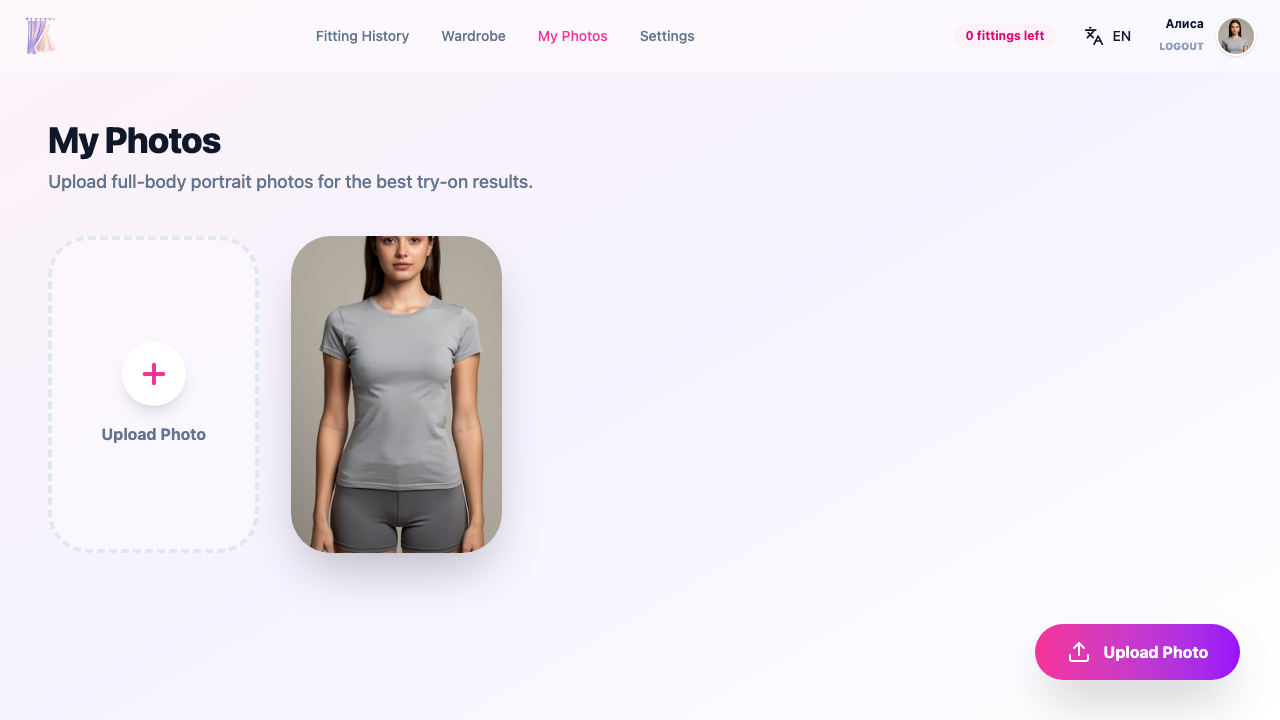
Photo types
Your gallery can contain two types of photos:
Original photos
Photos that you uploaded yourself. These are your full-body source photos that AI uses as the base for try-ons.
Combo photos
AI-generated photos created using items from your wardrobe. They are produced automatically during cascade fitting and are marked with a special badge.
Filtering photos
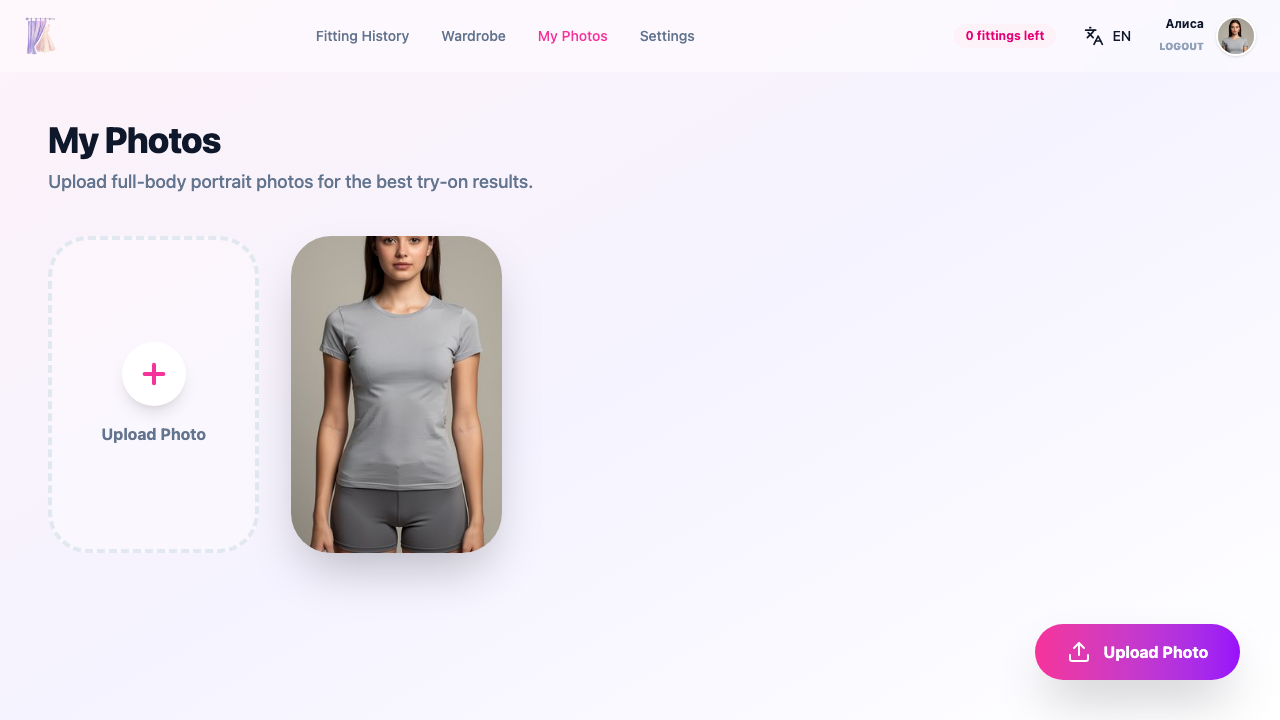
Above the gallery you will find filter tabs:
- All — shows all of your photos
- Originals — only photos you uploaded
- Combo — only AI-generated photos (this tab appears only when combo photos exist)
Last used photo
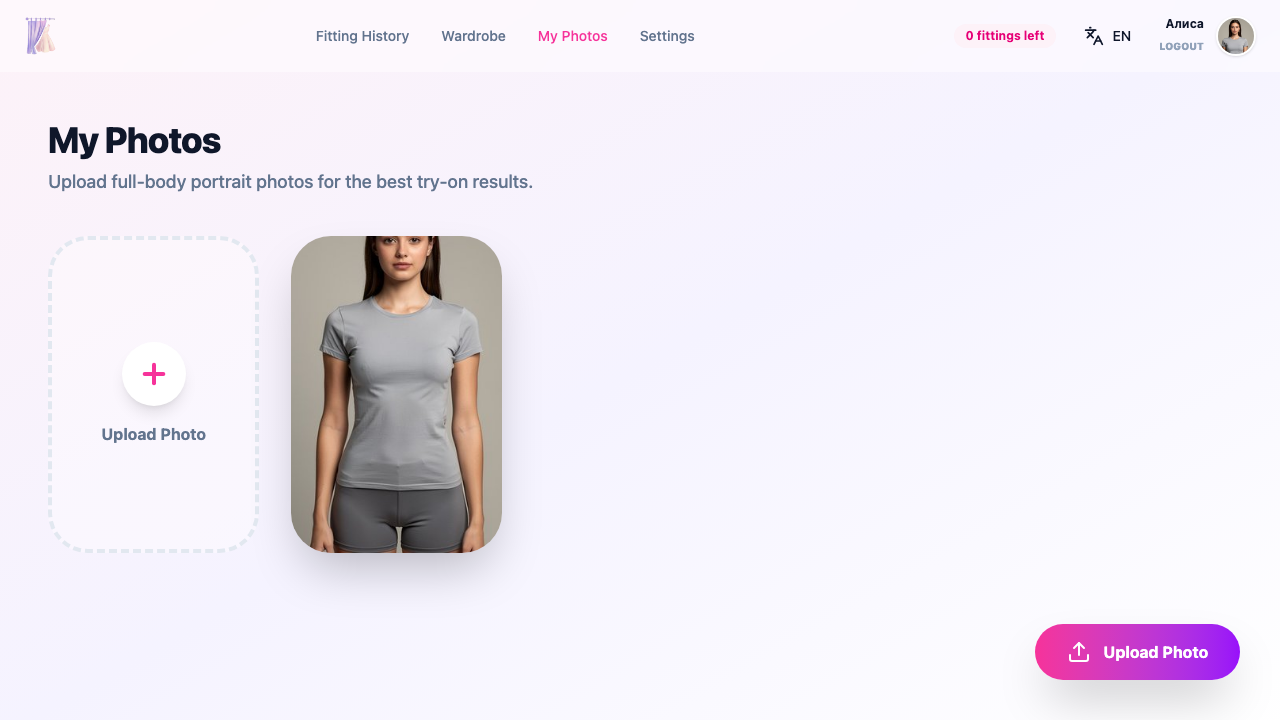
Click the star icon on any photo to mark it as “last used.” This photo will be automatically selected in the fitting wizard, allowing you to skip the photo selection step.
Совет
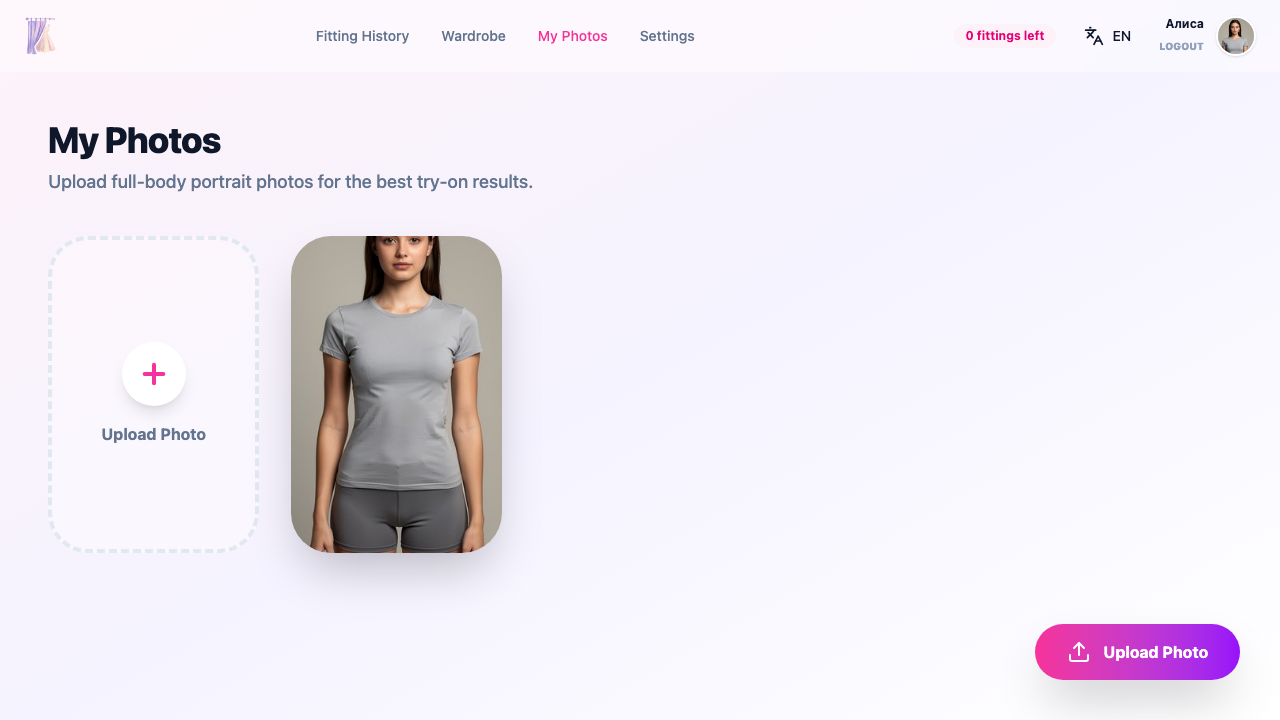
By setting a “last used” photo, you can start a try-on with a single click on the marketplace — no extra steps needed.
Deleting photos
You can delete any photo from your gallery. However, be aware of cascade deletion.
Внимание
When you delete an original photo, all related combo photos will also be deleted. This action is irreversible.
Tips for best results
For the best try-on quality, check out our photo tips.
Related sections
- Getting Started — get up and running with AI Fitting Room
- Try-On Process — how the fitting works
- Wardrobe — your digital clothing collection