
Try-On Process
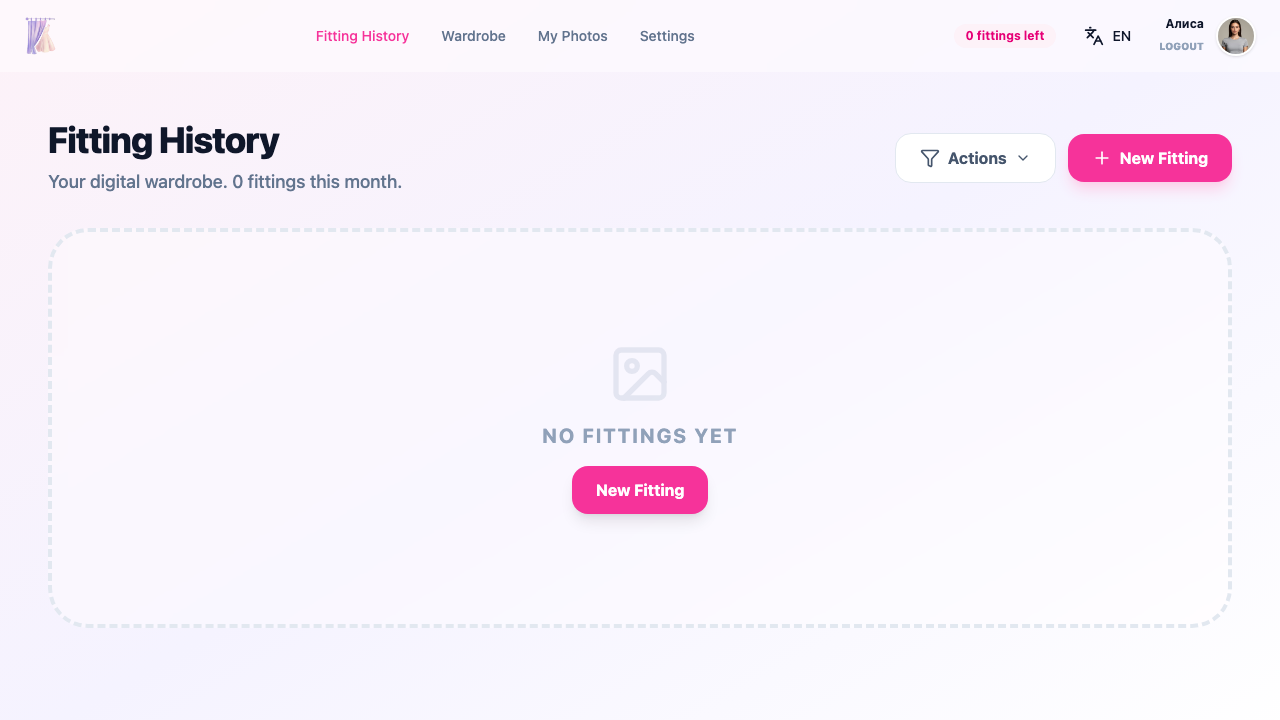
You can start a virtual try-on in two ways: directly from a marketplace via the browser extension, or from the web application dashboard.
How to start a try-on
From a marketplace (via the extension)
Open a product page on Wildberries or Ozon. A Try On button will appear on the clothing images. Click it to open the fitting wizard.
From the web application
In your dashboard, click the New Fitting button. The fitting wizard will open with an option to choose a clothing source.
Fitting wizard steps
-
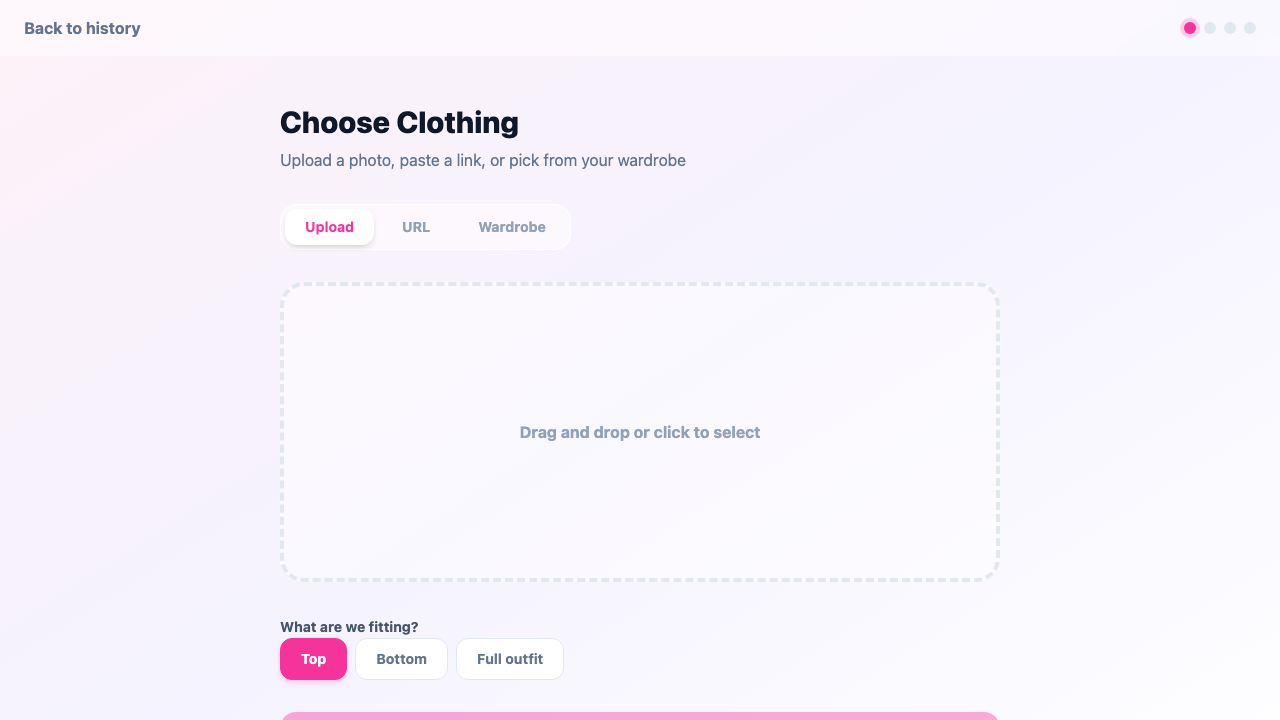
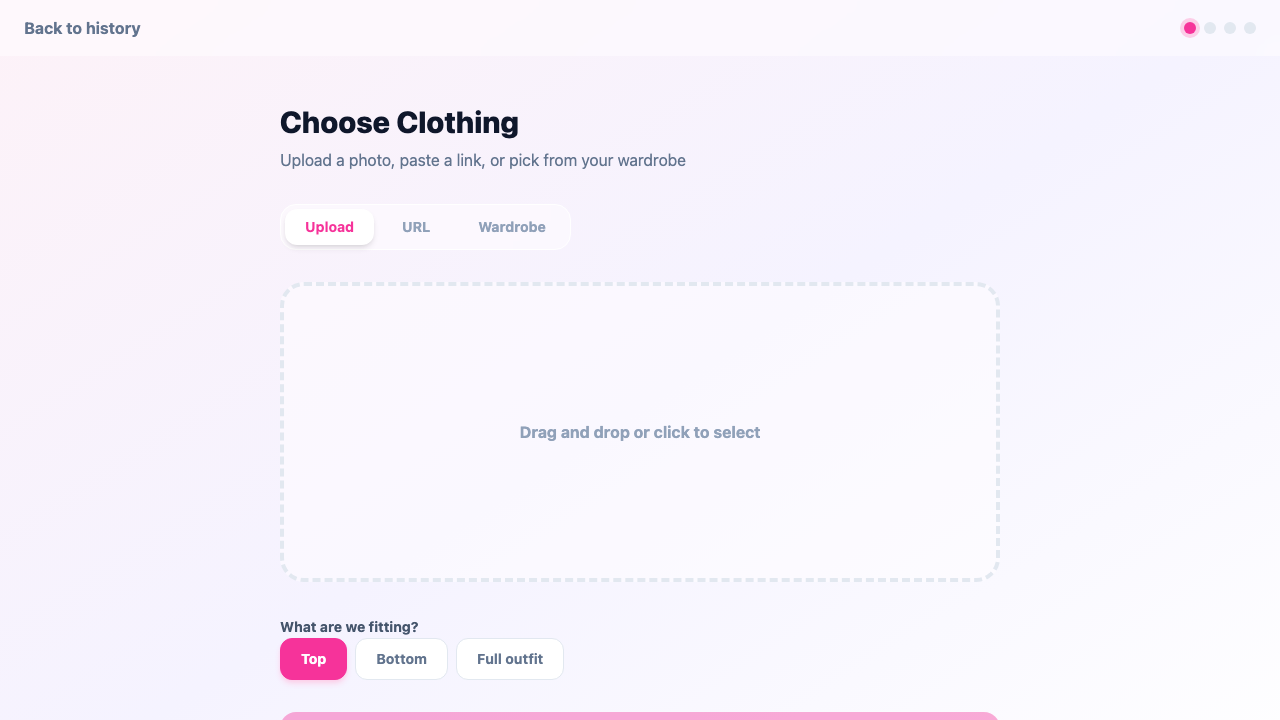
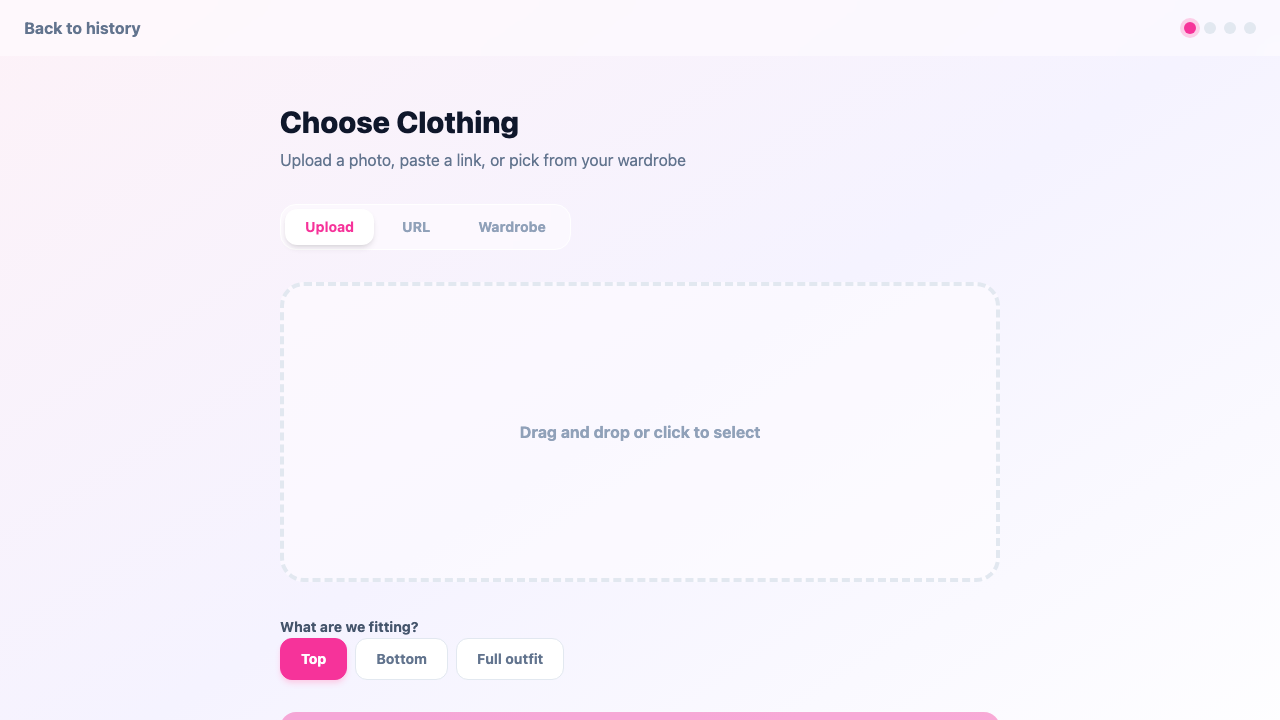
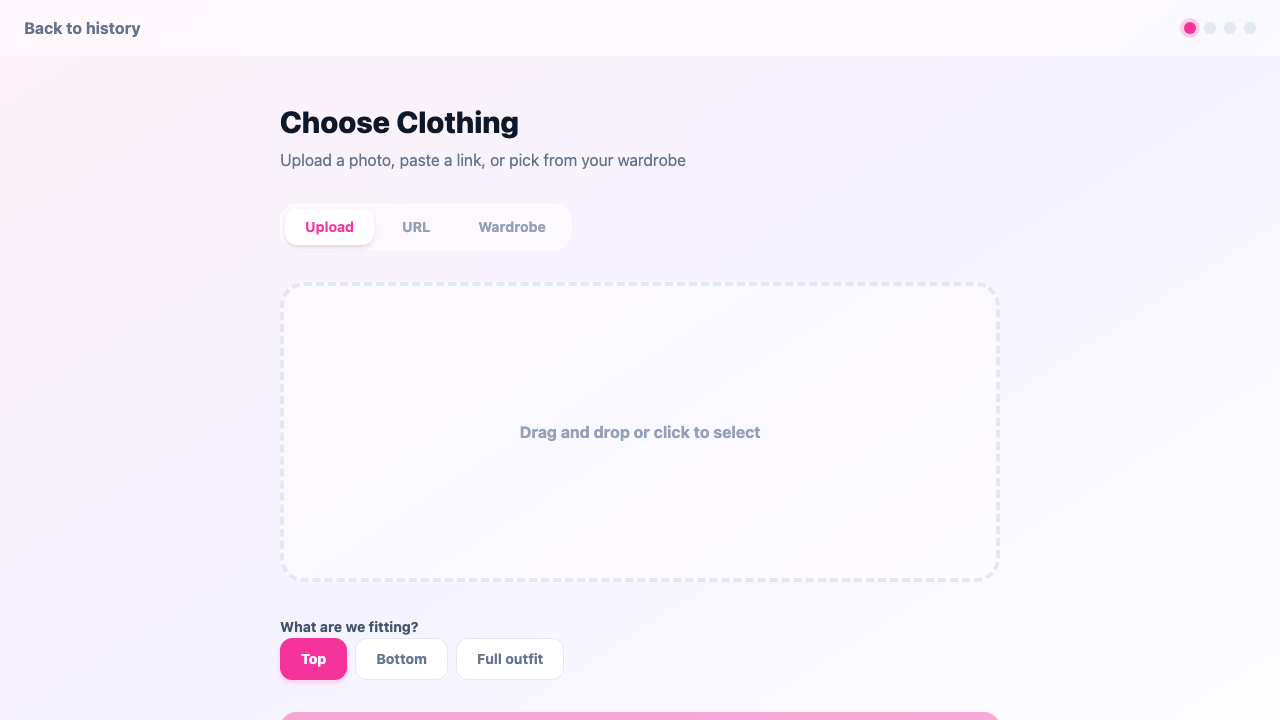
Choose clothing
Select the source for the clothing image:
- Upload image — upload a clothing photo from your device
- Paste URL — enter a URL of the clothing image
- From wardrobe — select an item from your saved collection
Also specify the clothing type: Top, Bottom, or Full outfit.
-
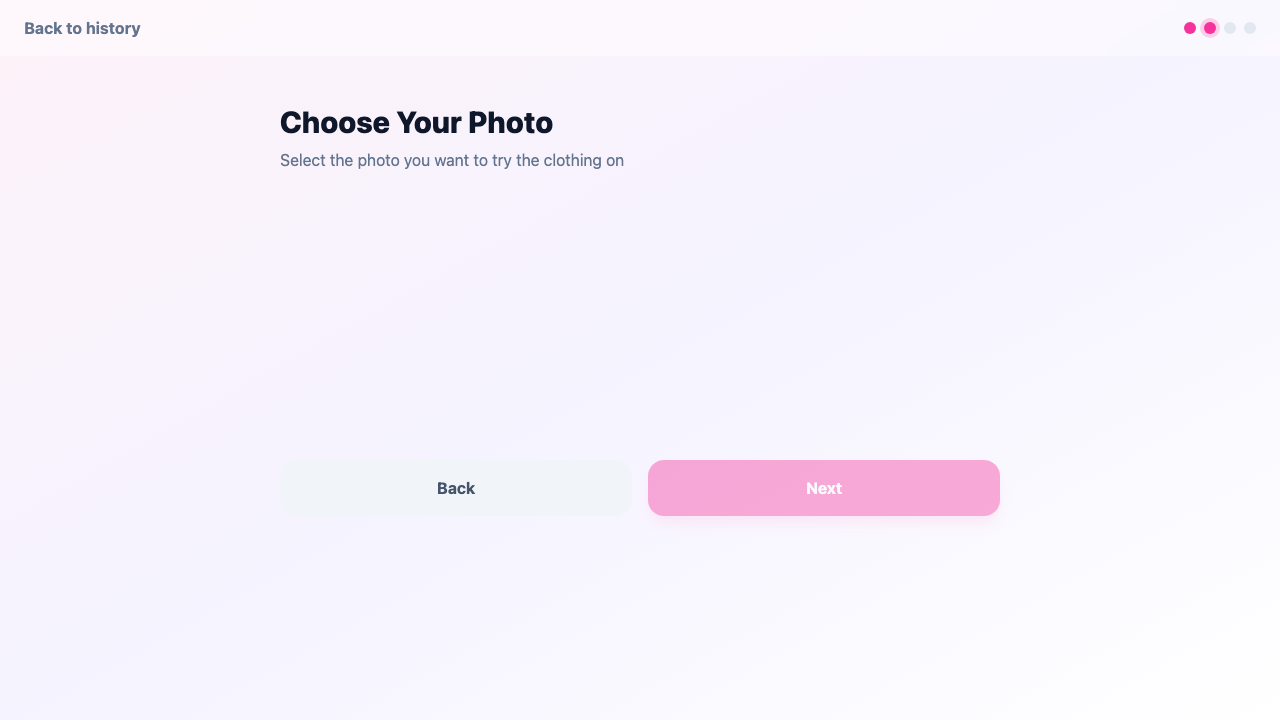
Choose your photo
Select a photo from your uploads. The photo marked with a star (last used) will be suggested first.
-
Wardrobe combo (optional)
This step lets you add a cascade fitting — combining marketplace clothing with an item from your wardrobe. For example, try on a shirt from your wardrobe along with new jeans.
You can skip this step if cascade fitting is not needed.
-
Confirm
Review the combination: the selected clothing and your photo are displayed side by side. Make sure everything looks correct and click Start Fitting.
-
Processing
AI processes your request. You will see the processing stages:
- Analyzing images
- Combining clothing
- Generating the result
- Final touches
-
Result
Done! Review the result and use the available actions:
- Rate — give a thumbs up or down to help improve AI quality
- Download — save the result to your device
- Share — send a link to friends
Совет
Processing takes approximately 30—60 seconds. While you wait, the screen displays fun facts about fashion and technology.
Внимание
Clothing with complex patterns, prints, or fine details may appear with minor artifacts. This is a normal limitation of current AI models.
Automatic try-on
If you have set a “last used” photo (star icon in the gallery), clicking the Try On button on a marketplace will start the fitting automatically — the wizard will skip the photo selection step and begin processing right away.
Related sections
- Photo Management — uploading and preparing photos
- Wardrobe — building your digital clothing collection
- History & Sharing — viewing and managing results