
Wardrobe
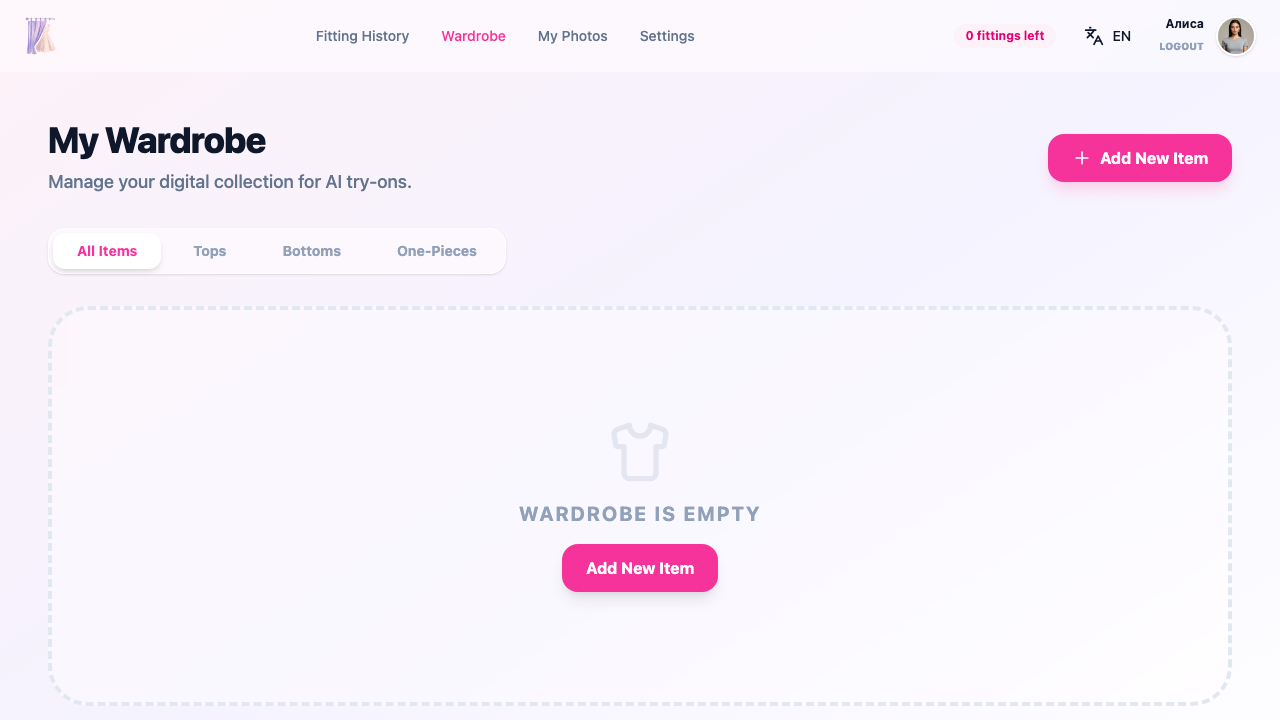
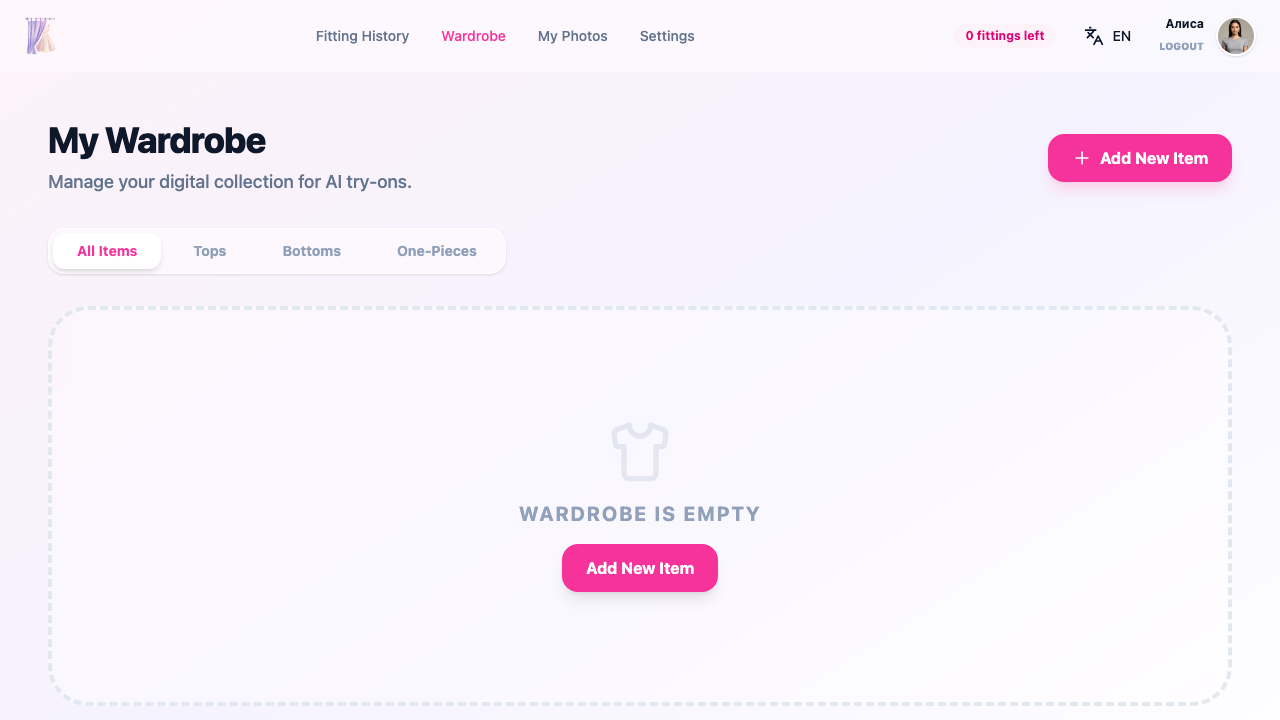
The Wardrobe is your digital clothing collection. Add items from your real closet or pieces you like to use them for AI try-ons without uploading images each time.
Clothing categories
All wardrobe items are organized by category. Use the tabs above the grid to filter:
- All — every clothing item
- Tops — shirts, blouses, t-shirts, sweaters, jackets
- Bottoms — pants, jeans, skirts, shorts
- One-pieces — dresses, jumpsuits, suits
Adding items
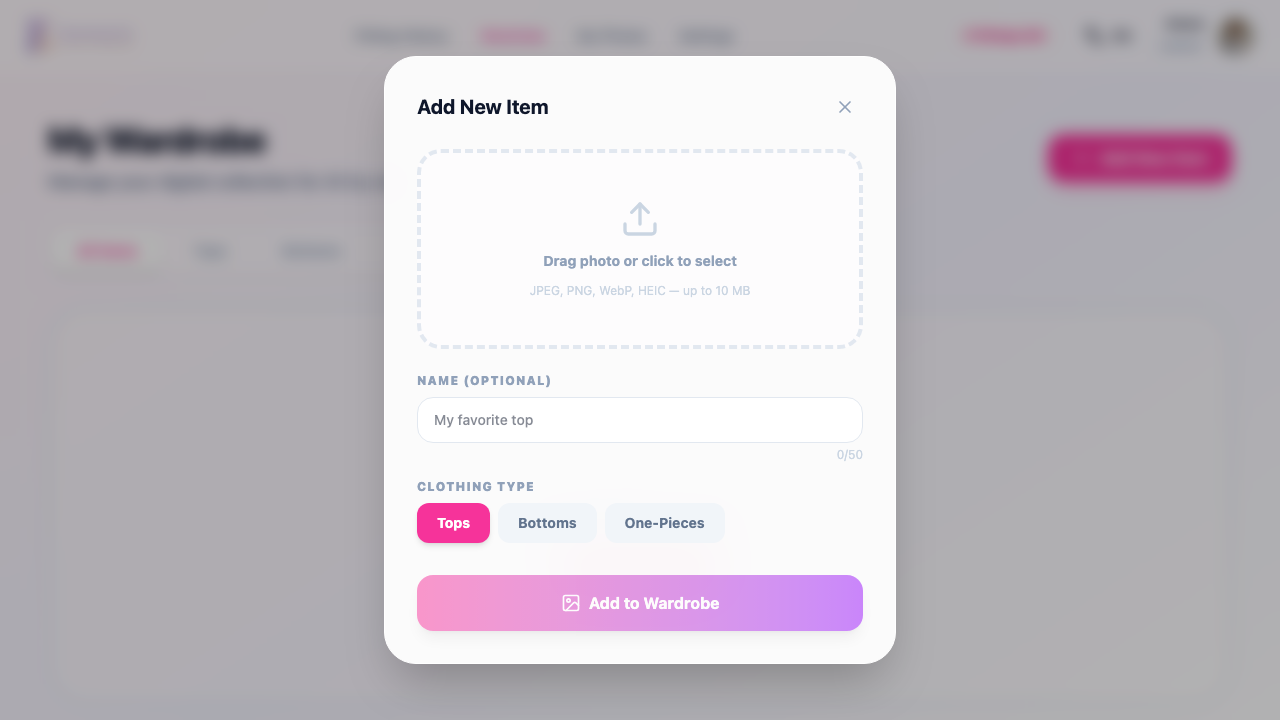
To add an item to your wardrobe:
- Click the Add Item button
- Upload a clothing image
- Enter a name (optional, up to 255 characters)
- Select a category: Tops, Bottoms, or One-piece
- Click Save
Supported formats
- Image formats: JPEG, PNG, WebP, HEIC
- Maximum file size: 10 MB
Совет
For the best results, use clothing images on a white or solid-color background. Product photos from marketplace listings work great.
Editing and deleting
You can change the name, category, or image of any wardrobe item. To delete an item, click the corresponding button on the item card.
Using the wardrobe in try-ons
When creating a new fitting in the wizard, select From wardrobe as the clothing source. You will see a list of your saved items with category filters.
Cascade fitting
The wardrobe enables cascade fitting — combining a wardrobe item with clothing from a marketplace. For example, you can try on a shirt from your wardrobe together with jeans from Wildberries.
Совет
Cascade fitting is available as an optional step in the fitting wizard. Select a wardrobe item at the “Wardrobe combo” stage.
Related sections
- Try-On Process — learn about the fitting steps in detail
- Photo Management — upload and organize your photos
- History & Sharing — view your past try-ons